無料で利用できる基本機能

バイナリ編集、検索、データインスペクタ、構造体ビューを利用できます。

主な機能

ブックマークCtrl+Bで選択したバイト範囲を着色し、一覧からジャンプできます。名前・色変更、表示切替に対応。無料版では3件まで登録できます。 ファイルを閉じると消える一時的な情報です。一覧は本体の下側に並べて表示します。初期高さを短くして表示領域を節約します。タイトルをドラッグして移動、枠をドラッグしてサイズ変更でき、本体を動かした場合は相対位置を保って追従します。登録後も編集画面のフォーカスを維持します。一覧の「● 表示/○ 非表示」をクリックして切り替え、右クリックで名前・色変更や削除を行えます。Enter・ダブルクリックでジャンプ、Deleteで削除できます。「ブックマーク → 一覧」で表示を切り替えます。手動で非表示にした後は登録しても自動表示せず、ファイルを閉じると一覧も閉じます。状態列は登録範囲がファイル末尾を超えた場合に表示します。初期表示の空きが足りない場合は本体の位置・サイズを調整し、最大化中は通常表示へ戻します。
Hex 表示と編集16進数表示、ASCII/Unicode 文字表示、上書き/挿入編集、選択範囲コピーに対応します。現在のバッファサイズはステータスバー二段目の右端に表示します。その左隣に選択したbyte数を表示し、数値の区切りは表示言語に合わせます。
巨大ファイル対応4GB を超えるファイルや長いファイルパスを扱えます。
データインスペクタカーソル位置のバイト列を整数、浮動小数点、文字として確認できます。
構造体ビュー .yupat 定義ファイルでバイナリレイアウトを構造化して確認できます。
多言語エンコーディング対応する12種類を「対応エンコーディング」に記載しています。
検索とジャンプファイル内検索、最近検索したワードの履歴、指定オフセットへの移動に対応します。
表示調整ダークモード、ズーム、フォント設定、DPI 対応により作業環境に合わせられます。
多言語 UI対応する15言語を「多言語 UI」に記載しています。

対応エンコーディング

  • ASCII
  • UTF-8
  • UTF-16 LE(リトルエンディアン)
  • UTF-16 BE(ビッグエンディアン)
  • Shift_JIS(Windows-932/CP932、日本語)
  • Windows-949(韓国語)
  • EUC-KR(韓国語)
  • Big5(繁体字中国語)
  • GBK(簡体字中国語)
  • TIS-620(タイ語)
  • Windows-1258(ベトナム語)
  • ISCII(デーヴァナーガリー文字)

多言語 UI

メニューやダイアログの表示言語として、次の15言語に対応しています。

  • 日本語(ja-JP)
  • 英語(en-US)
  • ベラルーシ語(be-BY)
  • ドイツ語(de-DE)
  • スペイン語(es-ES)
  • フランス語(fr-FR)
  • ハンガリー語(hu-HU)
  • イタリア語(it-IT)
  • 韓国語(ko-KR)
  • ポーランド語(pl-PL)
  • ポルトガル語(ブラジル、pt-BR)
  • ロシア語(ru-RU)
  • ウクライナ語(uk-UA)
  • 中国語(簡体字、zh-CN)
  • 中国語(繁体字、zh-TW)

スクリーンショット

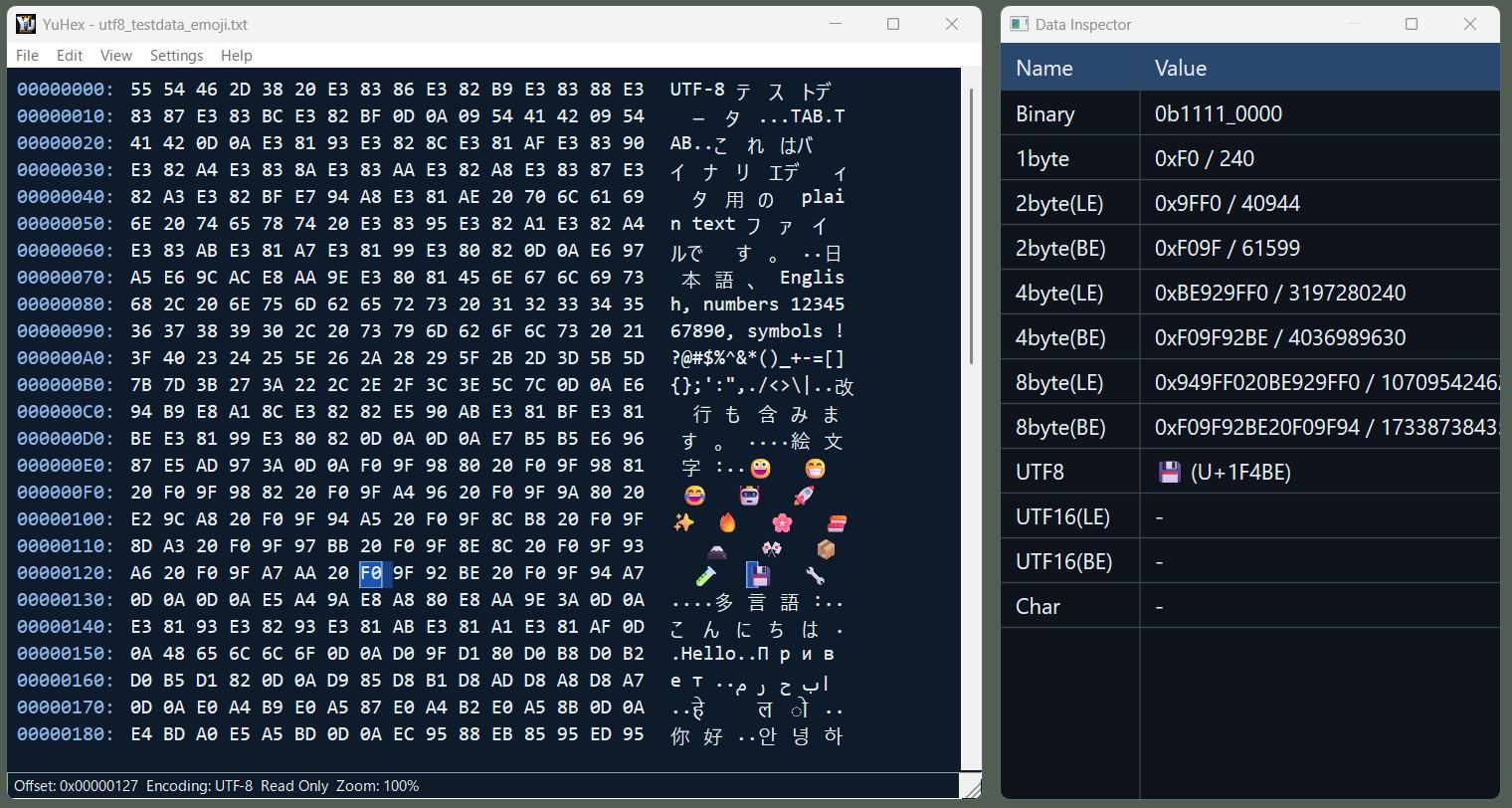
YuHex のメインウィンドウ
メインウィンドウ
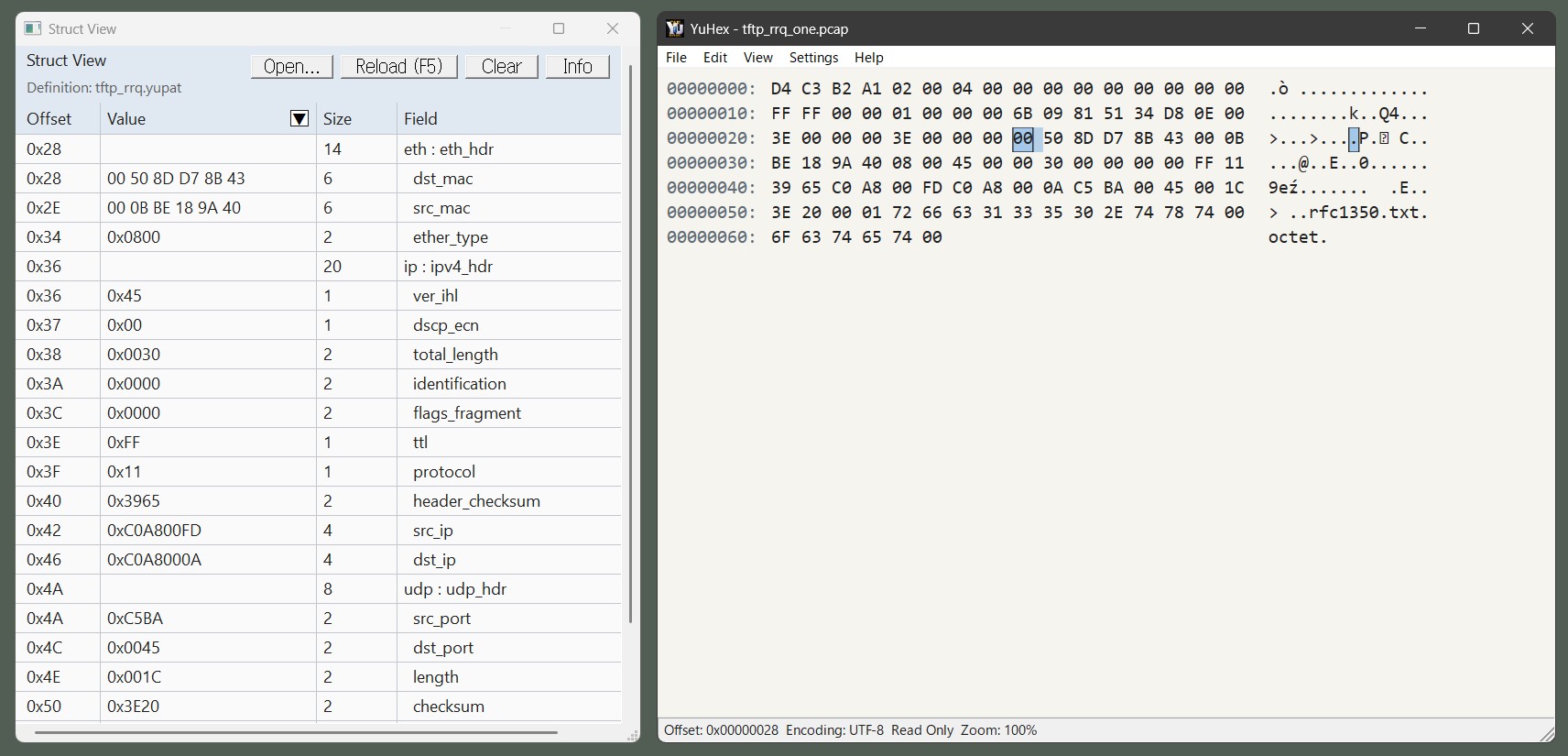
YuHex の構造体ビュー
構造体ビュー
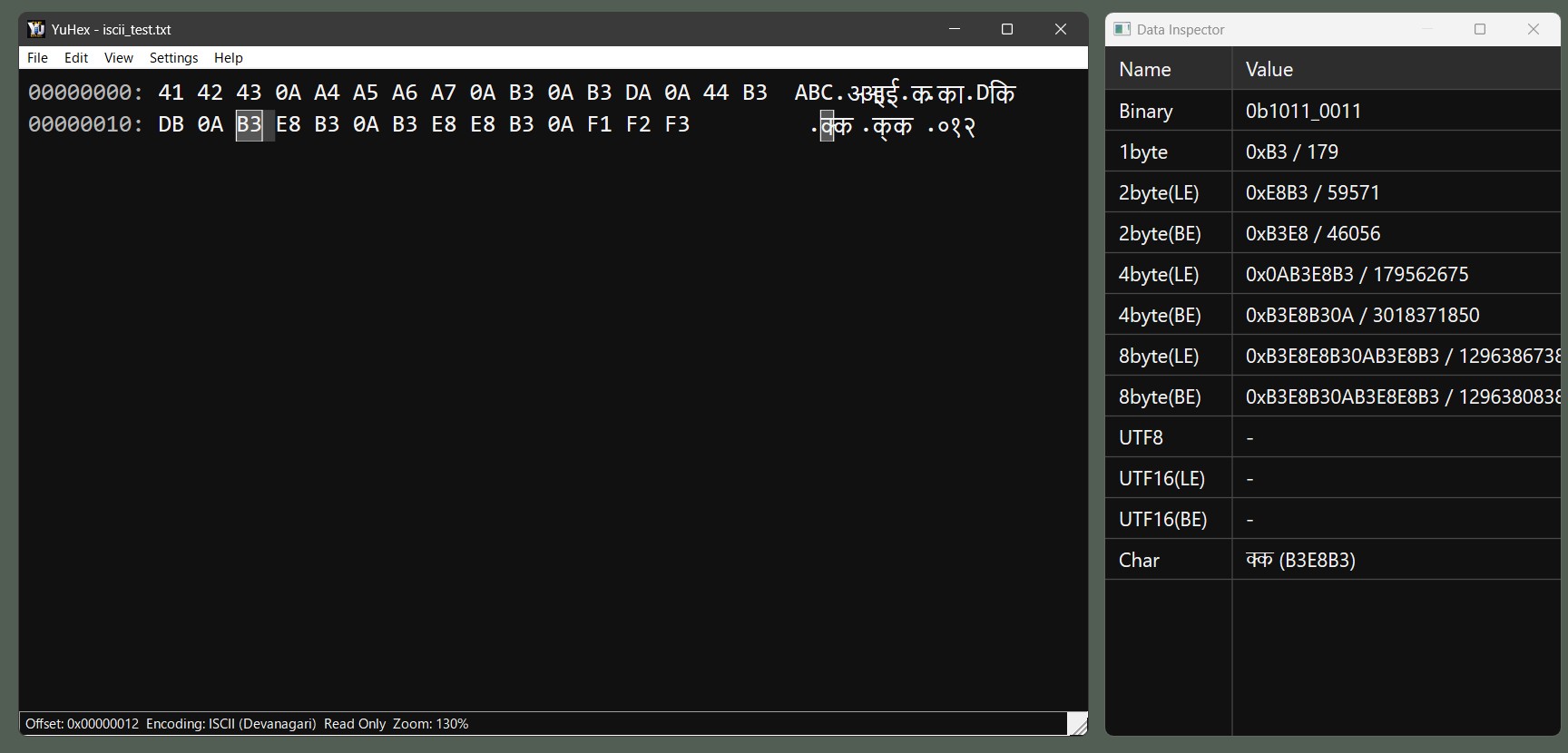
YuHex の多言語表示
多言語表示

構造体ビュー

.yupat定義ファイルで、バイナリデータをフィールド単位に確認できます。

無料版 — 構造体ビューガイド →

設定ファイル

設定はyuhex.settings.jsonに保存します。

yuhex.portable がある場合 実行ファイルと同じフォルダに yuhex.settings.json を保存します。
yuhex.portable がない場合 %LOCALAPPDATA%\YuHex\yuhex.settings.json に保存します。

保存先の取得やフォルダの作成に失敗した場合は、実行ファイルと同じフォルダを保存先として使用します。

キーボードショートカット一覧

全体

Ctrl+F 検索ダイアログを開きます。
Ctrl+G 移動ダイアログを開きます。
Ctrl+R 編集禁止をトグルします。

16進ダンプ領域

Shift+矢印 / Shift+PageUp・PageDown / Shift+Home・End / Ctrl+Shift+Home・End開始境界を維持して選択範囲を延長・縮小します。未選択からShift+右を1回で現在の1byte、Shift+左を1回で直前の1byteを選び、開始境界に戻ると解除します。
Ctrl+Aバイナリデータ全体を選択し、先頭へ移動します。編集禁止状態でも使用できます。
Ctrl+B選択範囲をブックマークに登録します。未選択ならカーソル位置の1byteを登録し、一覧を表示します。編集禁止状態でも使用できます。無料版は3件まで。
Ctrl+X選択範囲をクリップボードにコピーして削除します(切り取り)。
Ctrl+V16進数テキストを貼り付けます。選択範囲がある場合は置き換え、ない場合は現在の挿入・上書きモードに従います。
Ctrl+C 選択範囲を16進数テキストとしてクリップボードにコピーします。
Esc 選択範囲を解除します。
Insert 上書きモードと挿入モードを切り替えます。
Delete カーソル位置の 1 byte、または選択範囲を削除します。クリップボードの内容は変更しません。
Backspace カーソル直前の 1 byte、または選択範囲を削除します。
↑ / ↓ / ← / → カーソルを移動します。
Page Up / Page Down 1 画面上または下へ移動します。
Home / End 現在行の先頭または末尾へ移動します。
Ctrl+Home / Ctrl+End ファイル先頭または末尾へ移動します。
0-9, A-F, a-f 16 進入力で編集します。

マウス操作(16進ダンプ領域)

左クリッククリックしたバイトへカーソルを移動し、そのバイトを選択します。
左ボタンでドラッグ開始位置からドラッグ先までのバイトを選択します。
Shift+クリック既存の固定側を維持し、クリックしたbyteまで選択を延長・縮小します。未選択なら現在byteを基点にします。
ドラッグ中に表示領域の上下・左右へ出す開始点を維持して、その方向へ自動スクロールしながら選択を延長します。表示領域へ戻る、左ボタンを離す、またはフォーカスやマウスキャプチャを失うと停止します。
左ボタンを押したまま矢印・PageUp/Down・Home/End・Ctrl+Home/Endマウスを動かさず、移動先まで選択範囲を更新します。
マウスホイール上下にスクロールします。
Ctrl+マウスホイール表示の拡大率を変更します。

その他

F5 構造体ビューで現在開いている .yupat 定義ファイルを再読み込みします。
Ctrl+C, Ctrl+Insert データインスペクタや構造体ビューの選択中の値をコピーします。
Ctrl+A 情報ペインまたはエラーメッセージ欄の全文を選択します。
Enter 検索、移動、バージョン情報などのダイアログで既定の操作を実行します。
Esc 検索中ならキャンセル、待機中ならダイアログを閉じます。
Alt+F / Alt+E / Alt+V / Alt+H ファイル、編集、表示、ヘルプの各メニューを開きます。

Core features available for free

Includes binary editing, search, the data inspector, and Struct View.

Features

BookmarksPress Ctrl+B to highlight byte ranges and jump from the list. Rename, recolor, or hide each bookmark. The Free Edition supports up to three bookmarks. Bookmarks are temporary and cleared when the file is closed. The bookmark list initially appears below the main window with a compact default height. Drag its title to move it or its border to resize it; it follows the main window while preserving its relative position. Registration keeps focus in the editor. Click ● / ○ in the visibility column to toggle highlighting; right-click to rename, recolor, or delete. Enter or double-click jumps, and Delete removes the selected bookmark. Bookmarks → List toggles visibility. Once manually hidden, the list stays hidden when bookmarks are added. Closing the file also hides the list. The state column indicates ranges extending beyond the file. If space is insufficient initially, the main window is repositioned or resized; a maximized main window returns to normal mode.
Hex View and EditingEdit bytes in hex view with ASCII/Unicode text display, overwrite/insert mode, and selection copy. The current buffer size appears at the right of the second status-bar row. The selected byte count appears immediately to its left, with number separators matching the display language.
Large File SupportWork with files larger than 4GB and long file paths.
Data InspectorInspect bytes at the cursor as integers, floating-point values, and text.
Struct ViewUse .yupat definition files to inspect binary layouts as structured data.
Text EncodingsAll 12 supported encodings are listed under “Supported text encodings”.
Search and JumpFind data in files, reuse recent search terms, and jump to a specific offset.
Display ControlDark mode, zoom, font settings, and DPI awareness help fit your working environment.
Localized UIAll 15 supported languages are listed under “Localized UI”.

Supported text encodings

  • ASCII
  • UTF-8
  • UTF-16 LE (little-endian)
  • UTF-16 BE (big-endian)
  • Shift_JIS (Windows-932 / CP932, Japanese)
  • Windows-949 (Korean)
  • EUC-KR (Korean)
  • Big5 (Traditional Chinese)
  • GBK (Simplified Chinese)
  • TIS-620 (Thai)
  • Windows-1258 (Vietnamese)
  • ISCII (Devanagari)

Localized UI

Menus and dialogs support the following 15 display languages.

  • Japanese (ja-JP)
  • English (en-US)
  • Belarusian (be-BY)
  • German (de-DE)
  • Spanish (es-ES)
  • French (fr-FR)
  • Hungarian (hu-HU)
  • Italian (it-IT)
  • Korean (ko-KR)
  • Polish (pl-PL)
  • Portuguese (Brazil, pt-BR)
  • Russian (ru-RU)
  • Ukrainian (uk-UA)
  • Chinese (Simplified, zh-CN)
  • Chinese (Traditional, zh-TW)

Screenshots

YuHex main window
Main window
YuHex struct view
Struct View
YuHex multilingual display
Multilingual display

Struct View

Inspect binary data field by field using .yupat definition files.

Free Edition — Struct View guide →

Settings File

Settings are saved in yuhex.settings.json.

With yuhex.portable Save yuhex.settings.json next to the executable.
Without yuhex.portable Save to %LOCALAPPDATA%\YuHex\yuhex.settings.json.

If the application cannot resolve the storage location or create its folder, it uses the executable’s folder instead.

Keyboard Shortcuts

Global

Ctrl+F Open the search dialog.
Ctrl+G Open the Go To dialog.
Ctrl+R Toggle Read Only mode.

Hex Dump Area

Shift + arrows / Shift + PageUp or PageDown / Shift + Home or End / Ctrl + Shift + Home or EndExtend or shrink the selection while keeping its anchor boundary. With no selection, Shift+Right selects the current byte and Shift+Left selects the preceding byte. Returning to the anchor clears the selection.
Ctrl+ASelect all binary data and move to the start. Available in read-only mode.
Ctrl+BBookmark the selection, or the byte at the cursor when nothing is selected, and show the bookmark list. Available in read-only mode. Up to three bookmarks in the Free Edition.
Ctrl+XCopy the selection to the clipboard and delete it (Cut).
Ctrl+VPaste hexadecimal text. Replace the selected range, or follow the current insert or overwrite mode when no range is selected.
Ctrl+C Copy the selection to the clipboard as hexadecimal text.
Esc Clear the current selection.
Insert Toggle overwrite and insert mode.
Delete Delete one byte at the cursor, or delete the selection. The clipboard contents remain unchanged.
Backspace Delete one byte before the cursor, or delete the selection.
Up / Down / Left / Right Move the cursor.
Page Up / Page Down Move one page up or down.
Home / End Move to the start or end of the current row.
Ctrl+Home / Ctrl+End Move to the start or end of the file.
0-9, A-F, a-f Enter hexadecimal values for editing.

Mouse Operations (Hex Dump Area)

Left-clickMove the cursor to the clicked byte and select it.
Drag with the left buttonSelect bytes from the starting position to the drag destination.
Shift+ClickExtend or shrink to include the clicked byte while retaining the fixed endpoint. With no selection, use the current byte as the anchor.
Drag beyond the top, bottom, left, or right of the data viewportAutoscroll in that direction and extend the selection while retaining its anchor. Scrolling stops when the pointer returns to the viewport, the left button is released, or focus or mouse capture is lost.
Hold the left button and press arrows, PageUp/Down, Home/End, or Ctrl+Home/EndUpdate the selection to the new cursor position without moving the mouse.
Mouse wheelScroll up or down.
Ctrl + Mouse WheelAdjust the zoom level.

Other

F5 Reload the currently opened .yupat definition file in Struct View.
Ctrl+C, Ctrl+Insert Copy the selected value in Data Inspector or Struct View.
Ctrl+A Select all text in the info pane or error message area.
Enter Execute the default action in search, Go To, and about dialogs.
Esc Cancel the current search or close an idle dialog.
Alt+F / Alt+E / Alt+V / Alt+H Open File, Edit, View, and Help menus.