Keep a header and its data visible at the same time. New mirrors use the same width and height as the main window. Open up to three read-only mirrors, for four views including the main window. Unsaved edits, replacement, fill, and Undo/Redo are reflected in every mirror.
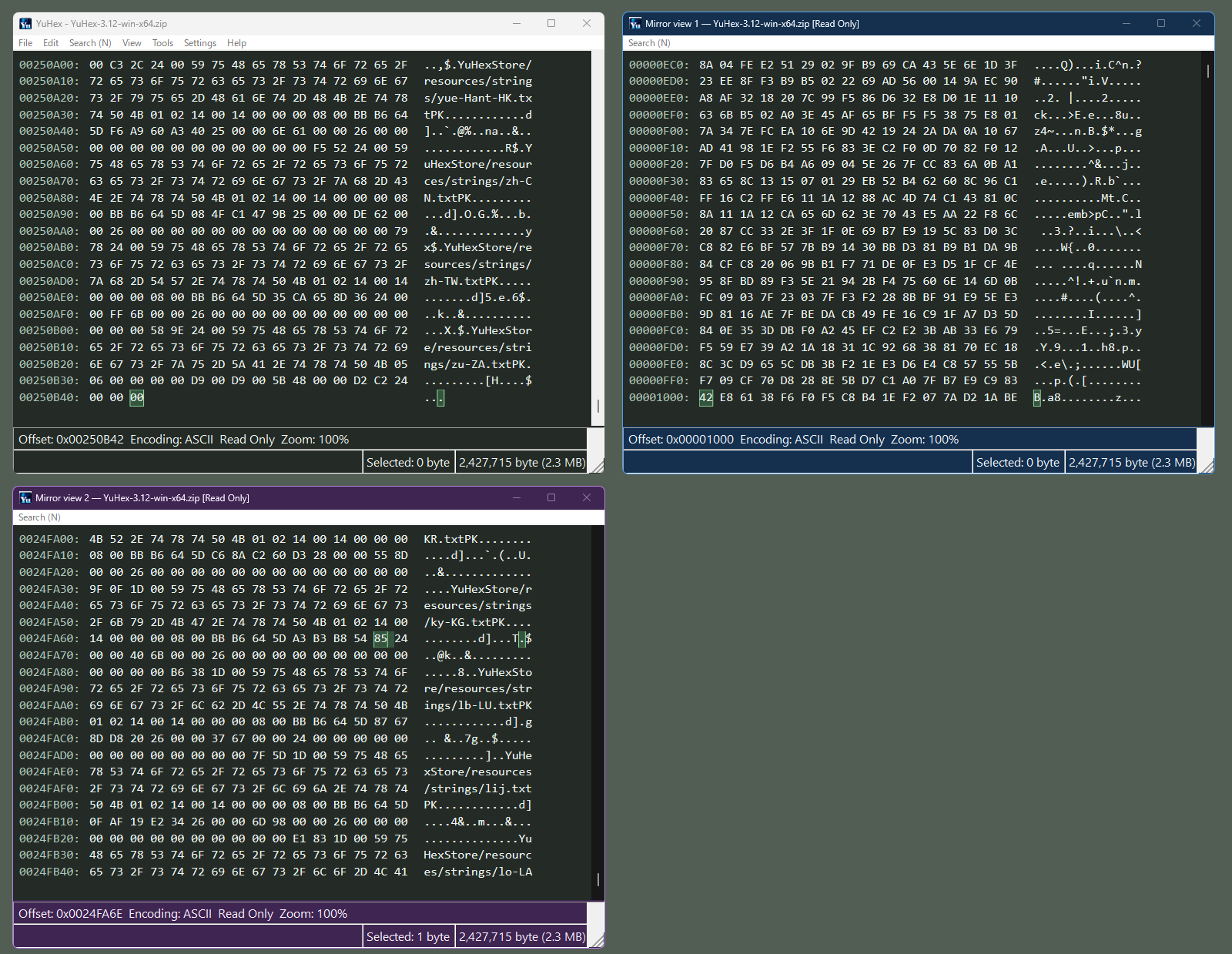
Inspect different offsets in the same file with the main view and two mirrors (English UI). Click the image to view it full size.
Open and close
Choose View → Mirror view → New mirror in the main window. A new mirror starts at the main offset; scrolling, selection, and jumps are then independent. You can copy selected data, but cannot type, paste, delete, or replace it.
Captions show the mirror number, filename, and read-only label. Move and resize mirrors freely and close them with ×. Closing the file, opening a different file, or exiting closes all mirrors. Reloading keeps the windows, clamps positions to the valid range, and invalidates old search results. Window counts and positions are not saved for the next launch.
Synchronize and arrange
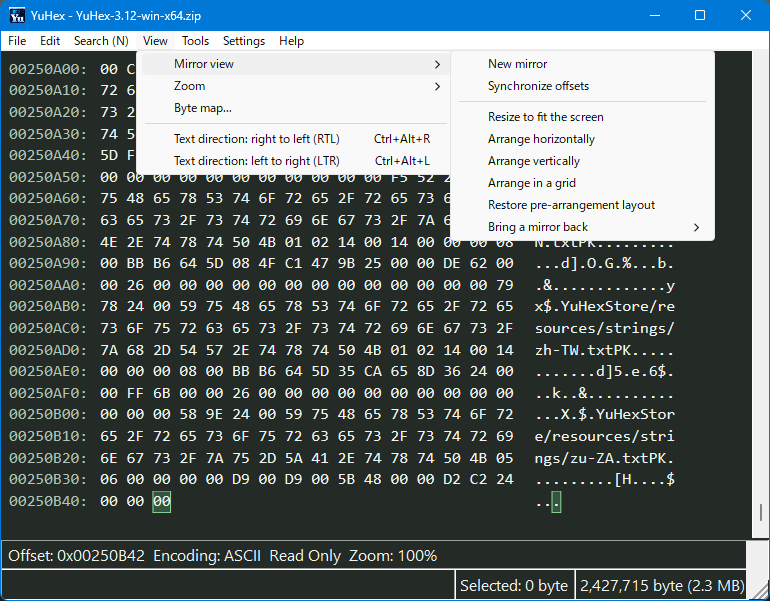
Use View → Mirror view to synchronize offsets, resize, arrange, restore the layout, or bring a mirror back onscreen (English UI). Click the image to view it full size.
Main-window command
Action
Synchronize offsets
Clear mirror selections and align their cursors and first visible rows with the main view once. Views remain independent afterwards; scrolling is not automatically synchronized. Esc does not close a mirror; use its title-bar close button.
Resize to fit the screen
OFF by default. OFF keeps the main window in place and preserves all sizes. Turn ON before arranging to resize the main window and mirrors into its monitor’s work area. Kept only for the current run.
Arrange horizontally / Arrange vertically
Arrange in a row or column from the main window. Size-preserving arrangements may extend offscreen.
Arrange in a grid
Use up to a 2×2 grid. Horizontal ordering is reversed in RTL.
Restore pre-arrangement layout
Return to the positions, sizes, and minimized/maximized states captured before the first arrangement. Repeated arrangements do not overwrite the snapshot. Restoration clears it; closed mirrors and mirrors created later are skipped.
Bring a mirror back
Choose a number and filename to return just that mirror to the main monitor and bring it forward, without resizing it, moving other windows, or changing the restore snapshot.
When resizing to fit, if minimum sizes do not fit, positions remain unchanged and a message is shown. Choose another arrangement or close a mirror. You can still move windows after tiling.
Search independently
Use a mirror’s Search menu. Hex, text, mismatch, next/previous, count, results, and marks are supported. Queries, selection scopes, results, and marks belong to each view; choosing a result moves only its mirror. Search history uses the existing shared history.
Only one search runs across the application at a time. It uses the current acceleration setting and prevents main-document edits while running. Closing the searching mirror cancels its search. Editing the document invalidates old results and marks.
Identity colors and appearance
Mirror 1 uses blue, 2 purple, and 3 orange for captions, borders, and status bars. Identity colors adapt to light/dark mode; dump backgrounds, text, selections, and marks keep the existing theme. Search, Go To, and floating results share the same color and number.
Dump colors, font, encoding, and editor direction follow the main view. The main view and mirrors share two-row status-bar dimensions, field order, byte-value reading direction, and row/column separators. Dump heights match at the same DPI, zoom, and size when additional panels also occupy the same space. Menu bars and popup menus use standard Windows rendering. A mirror cannot edit the main document or turn off read-only mode.