Inspect bytes as colors and locate interesting data in the hex view.
Open and close
Use View → Byte map in the main window to show or hide it. The item is checked while shown. The window’s close button also hides it, and closing the file closes the byte map.
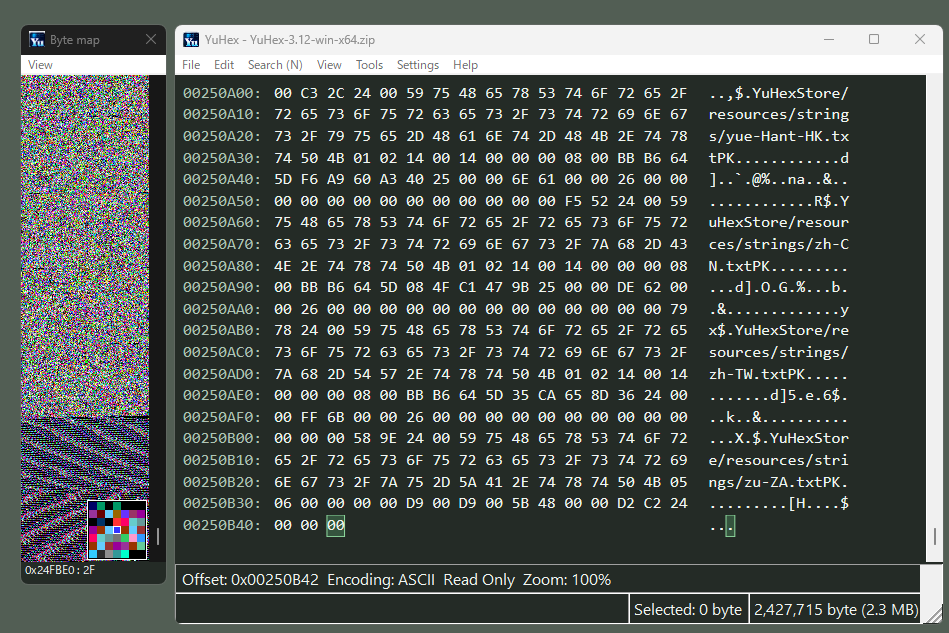
This read-only view draws one pixel per byte. Point at a pixel for a crosshair and a 7×7-byte magnifier with a white outline around the central byte. The magnifier centre stays at the crosshair; portions outside the canvas are clipped. The magnifier disappears outside the data or when the pointer leaves. See “0xoffset : value” below; click to select that byte in the main view. The image does not edit data.
Inspect byte values as colors beside the hex view and magnify the area around a pixel (English UI). Click the image to view it full size.
Position and size
Initially, the image is aligned to the left of the hex view in LTR and to its right in RTL, at the same height. If space is limited, placement is constrained to the screen. Drag the title bar to move the window or its borders to resize it. Manual adjustments disable automatic positioning. View → Align to the edge of the hex view restores it.
The default window width fits the image, scrollbar, and borders. Narrow it to browse through a horizontal scrollbar. Change Width or Zoom to make the image wider. The minimum width leaves room for the close button and title-bar interaction.
Display settings
Use the byte map’s View menu or right-click the image.
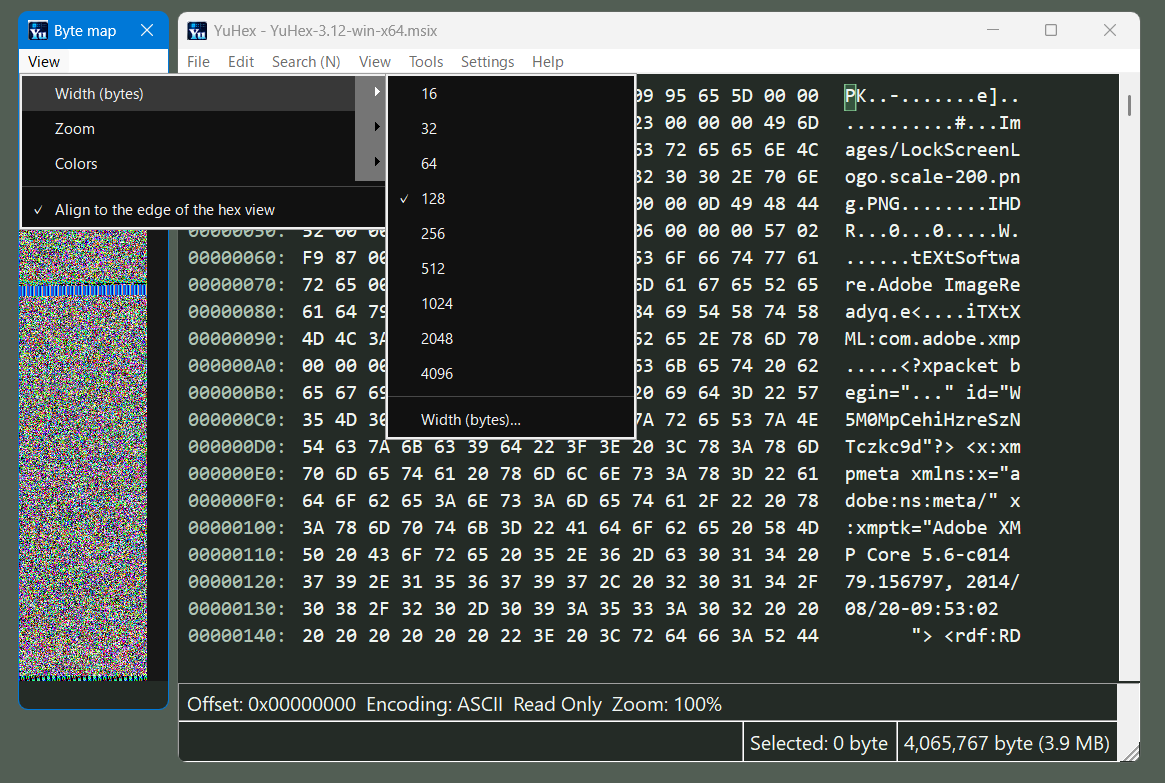
Change Width (bytes), Zoom, Colors, and alignment from the View menu (English UI). This example shows the width presets. Click the image to view it full size.
Setting
Meaning
Width (bytes)
Bytes per image row, initially 128. Match this to repeating data structures to reveal patterns. The last submenu item accepts a custom value from 1 to 4096.
Zoom
Pixel size for each byte, initially 1×. Choose 1×, 2×, 4×, or 8× without changing the byte width.
Colors: 256
The default palette uses a standard color cube and gray levels to show value differences and repeating patterns.
Value classes (00 / FF / ASCII)
Groups bytes into the five categories below. Useful for spotting nonzero values among zeros or identifying broad ASCII-value regions.
Grayscale
00 is black and FF is white; larger values are brighter.
What “Value classes” means
Each category of byte values shares a color. For example, 41 and 42 are both cyan. Choose Colors: 256 when you want to inspect finer value patterns.
Byte values (hex)
Color
Category
00
Dark gray
Zero
FF
White
All bits set
20–7E
Cyan
Printable ASCII values
01–1F, 7F
Orange
ASCII control values
80–FE
Purple
Other high values, excluding FF
These categories describe numeric ranges, not detected text or file formats. Use Hex (mismatch) search for exhaustive detection.
Following the main view
Changing Width, Zoom, or window size preserves the end when you are viewing the end of the file. Elsewhere, it preserves the byte position rather than reusing a row number.
The image follows main-view scrolling and cursor moves outside the visible area. Scrolling only the image does not move the main cursor. Unsaved edits, replacement, fill, and Undo/Redo are reflected. Only the visible area is read, including for large files. Scrolling retains the presented image until the next image is ready; navigation from the old image is disabled while waiting. The status is right-aligned in RTL layouts; image addresses and the reading order of numbers remain LTR.